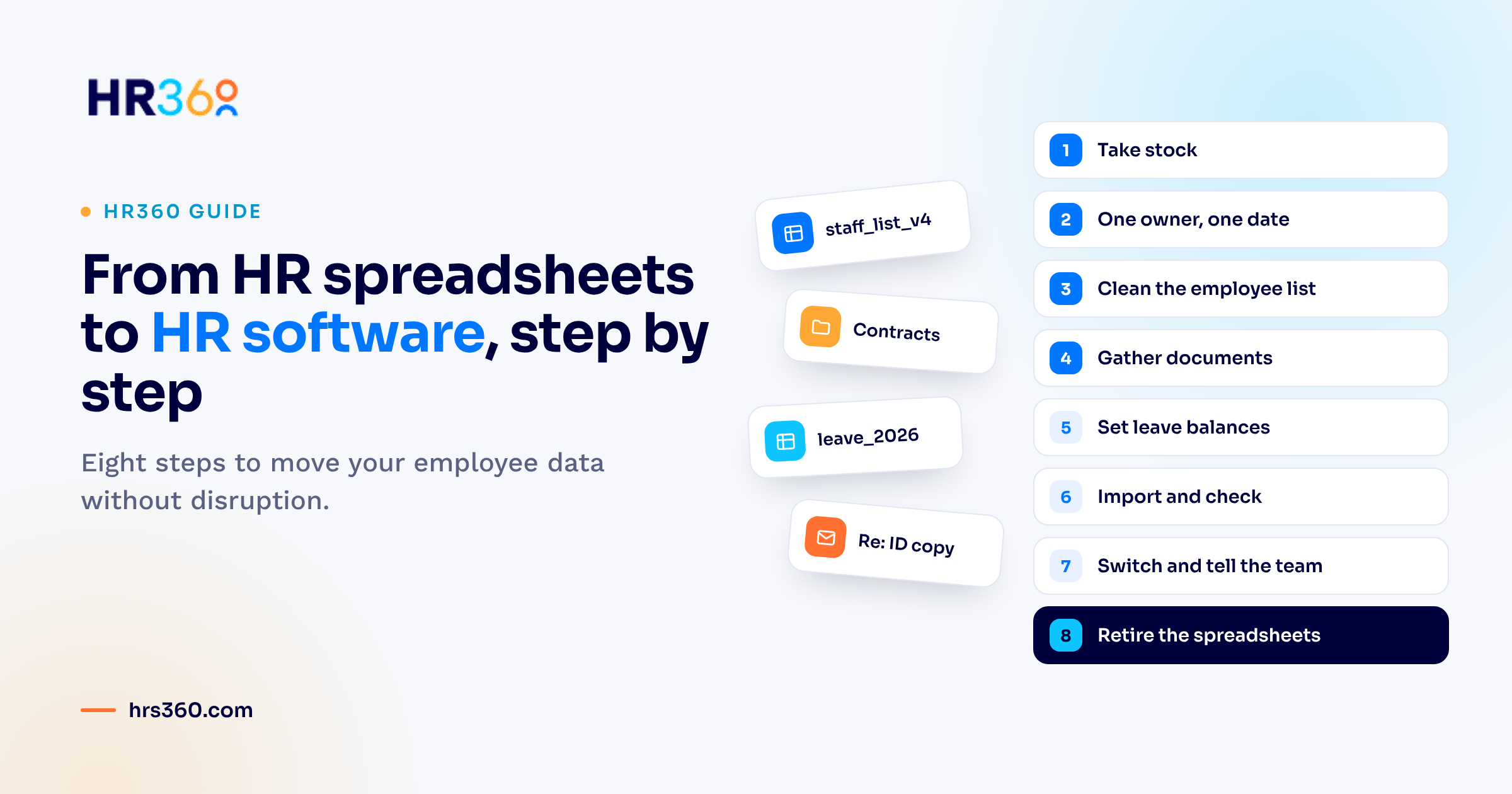
Deciding to move off spreadsheets is the easy part. The hard part is the move itself: years of employee data spread across files, inboxes and folders, a team that’s used to the old way, and day-to-day HR that can’t stop while you switch.
The good news is that a small or growing business can make the move without a big project, as long as it happens in the right order. This guide walks through eight steps, from taking stock of what you have to retiring the last spreadsheet, plus the mistakes that slow most teams down.
Before you start: decide what “done” looks like
Write down, in one or two lines, what you want to be true when the move is finished. For example: “Every employee has one record with their profile, documents and leave, and nobody updates the old spreadsheets.” That sentence keeps the project small and gives you a clear finish line.
It also helps you resist the urge to move everything at once. Most teams get the most value from moving employee records, documents and leave first. Attendance and hiring can follow once people are comfortable.
Step 1: Take stock of where employee data lives today
You can’t move what you haven’t found. Spend an hour listing every place employee information is kept, and who looks after it. A simple inventory might look like this:
| What | Where it lives today | Who maintains it |
|---|---|---|
| Employee list and job titles | Main HR spreadsheet | HR |
| Contracts and offer letters | Email threads and a shared folder | HR and managers |
| ID copies and certificates | Folder on the office PC | Office admin |
| Leave balances | Separate leave spreadsheet | HR |
| Equipment handed out | A notebook, or nowhere | Office admin |
| Attendance | Paper sheets or a group chat | Site supervisors |
Ask each manager one question: “Do you keep anything about your team that HR doesn’t have?” The answer is usually yes, and it’s better to find out now than after the move.
Step 2: Choose one owner and a cut-over date
Give the move one owner. They don’t have to do all the work, but they decide what goes where, answer questions and keep the timeline. Without an owner, the move stalls the first time two spreadsheets disagree.
Then pick a cut-over date: the day the new system becomes the single source of truth and the old files stop being updated. A quiet week works best, so avoid month-end and busy seasons. Everything in the next steps works back from that date.
Step 3: Clean the employee list first
Clean data in means a clean system out. Before importing anything, agree on one correct row per person. Work through this checklist:
- Remove duplicates. The same person often appears twice with slightly different spellings.
- Remove people who have left. Archive their details separately rather than importing them as active employees.
- Fill the basics for everyone: full name, job title, department, manager, start date, work email and contract type.
- Standardise formats. One date format, one spelling for each department and job title, one way of writing names.
- Confirm managers. Make sure every manager named in the list is also an employee in the list.
Ask each manager to check their own team’s rows. They’ll spot a wrong job title or a missing person in seconds.
Step 4: Gather documents and match them to people
Collect contracts, ID copies, certificates and licences into one temporary folder, with one sub-folder per employee. Rename files consistently so they’re easy to upload, for example: Mansour_Layla_Contract_2024.pdf.
Note the expiry date of every document that has one as you go. You’ll need these dates in the new system, and this is often the moment teams discover a document that has already expired. Our guide to tracking employee document expiry dates explains how to set reminders so it doesn’t happen again.
Step 5: Set opening leave balances on a fixed date
Leave balances cause more arguments during a move than anything else, so treat them carefully:
- Pick a cut-off date for balances, ideally your cut-over date or the start of a month.
- Calculate each person’s balance as of that date from your current records.
- Send each employee their opening balance and ask them to confirm or query it within a week.
- Resolve queries before cut-over, then load the agreed balances.
After this, every request and approval happens in the new system, so the balance everyone sees is the same one.
Step 6: Import, then check before you switch
Load the cleaned employee list first, then attach documents to each record, then load leave balances. Doing it in that order means every document and balance has a record to attach to.
Before cut-over, check the result. Open a handful of records from each department and compare them with your source files. Ask each manager to look over their team in the new system. Fix anything wrong now, while the old files are still there to check against.
Step 7: Switch one process at a time and tell your team
On cut-over day, the new system becomes the place where records, documents and leave live. Keep the first phase simple, and add attendance and hiring once people are comfortable.
Tell employees and managers exactly what changes for them, in a short message:
- Where to request leave from now on, and who approves it.
- Where to see their own details and documents.
- Who to ask if something looks wrong.
A short walkthrough for managers saves a lot of “how do I…” messages later.
Step 8: Retire the old spreadsheets
This is the step most teams skip, and it’s the one that decides whether the move sticks. Once the new system is in use, make the old spreadsheets read-only, move them to an archive folder and tell everyone where they are. If people can still edit the old files, someone will, and you’ll be back to two versions of the truth within a month.
Common mistakes that slow the move down
- Importing messy data and planning to fix it later. Later rarely comes. Clean first.
- Moving everything at once. Records, documents and leave first; the rest when people are ready.
- Skipping the leave confirmation. One disputed balance can undermine trust in the whole system.
- No cut-over date. Without one, both systems run side by side indefinitely.
- Keeping the old files editable. Archive them, read-only, on cut-over day.
Still deciding whether you need HR software at all? Our guide to HR software for small businesses explains what an HRIS does and the signs a small business needs one.
How HR360 helps with the move
We built HR360 around one employee record, so the move has a clear destination: each person’s profile, documents, leave and assets on a single record. Web check-in with location consent and a complete hiring pipeline sit alongside it when you’re ready to add them.
In a demo, we can walk through how your existing spreadsheets and documents would come across, and what your first phase could look like. You can see how the platform fits together on our products page.
Frequently asked questions
How long does it take to move from spreadsheets to HR software?
It depends mainly on how organised your current data is and how many people you have. Cleaning the employee list and confirming leave balances usually take the most time; the import itself is quick once the data is ready.
What should I move first?
Employee records, documents and leave. They’re used every day and give the quickest benefit. Add attendance and hiring once people are comfortable with the new system.
Should I run the spreadsheet and the new system side by side?
Only briefly, while you check the imported data. After your cut-over date, make the spreadsheets read-only so there’s one source of truth.
How do I handle leave balances when switching systems?
Pick a cut-off date, calculate each balance as of that date, ask each employee to confirm theirs, resolve any queries, then load the agreed balances before cut-over.
Who should own the move?
One person, usually from HR or operations, who makes decisions, answers questions and keeps the timeline. Managers check their own team’s data, but one owner keeps the move from stalling.
Planning your move?
If your employee data is spread across spreadsheets and folders, we’d be glad to show you what it looks like on one record and talk through how you’d get there. Contact us to book a short demo.